
From saving to finding: a guide to your Fluxion library
Saving an article takes a moment. Finding it again later is what makes it useful.
Fluxion brings notes, saved articles, websites, subscriptions, and everyday tools into one space. Recent updates give Home, folders, and lists clearer roles: keep current material close, then give it a lasting place.
This guide includes the Recent / All switch in the 1.16 preview. The interface depends on the version installed on your device.
Keep recent work close
Home defaults to material updated in the past seven days. In the 1.16 preview, switch between Recent and All above the list to browse older items too.
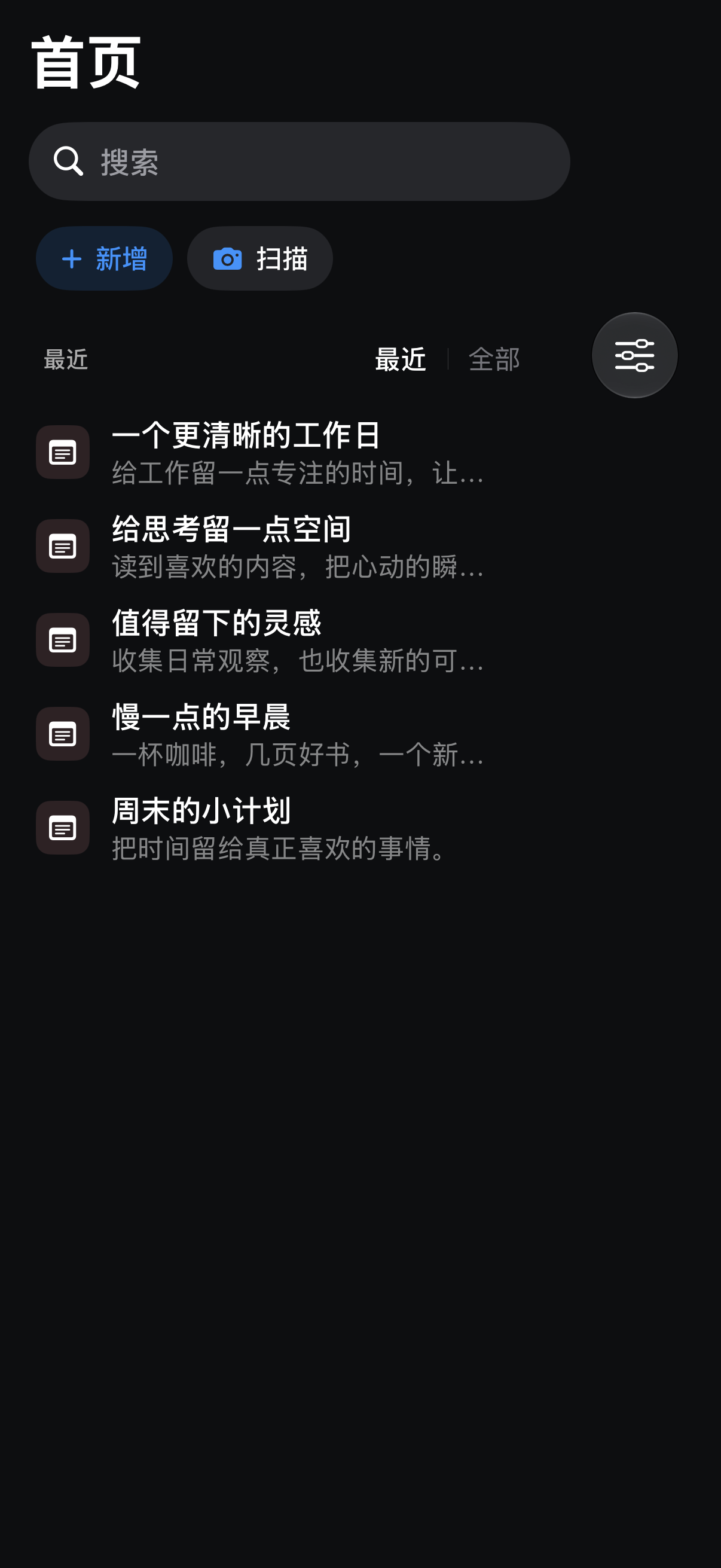
Recent is a viewing scope: older items remain in your library. Home search and explicit type filters search across the library without the seven-day limit. If you remember a word from a title, searching may be quicker than scrolling.
Give recurring subjects a folder
The library area on Home offers quick access to folders and frequently used content. When there are many entries, open the full library picker and search for one.
Start with folders based on what you actually use: an active project with reference articles and notes, a long-term interest such as photography, or everyday material you revisit occasionally. Save first and organize when a theme emerges; you do not need to design a complex hierarchy in advance.
Arrange a list for the task
In folder and favorites lists, use the organize menu to choose an order:
| When you want to… | Try |
|---|---|
| Continue with recently changed material | Recently Updated |
| Review older material | Oldest Updated |
| Browse by title | Name |
| Separate notes, websites, and subscriptions | Group by Type |
Grouping changes how the list is displayed; it does not move items into folders. Reading categories in the feed serve a different purpose: they filter subscription articles using rules. The existing filter guide is available in Chinese.
Keep the source with the result
Save an article to keep its text in your library. An AI answer can be saved separately as a note with its citations. Related items may appear as expandable entries, and citations can take you back to the source.
For a project, you might save a reference article, write your own note, and place both in the same folder. Later, you can revisit both the material and your thinking.
Continue in a desktop browser
Fluxion includes a local web server. Enable it in the app to browse and edit material and work with subscriptions from a computer browser.
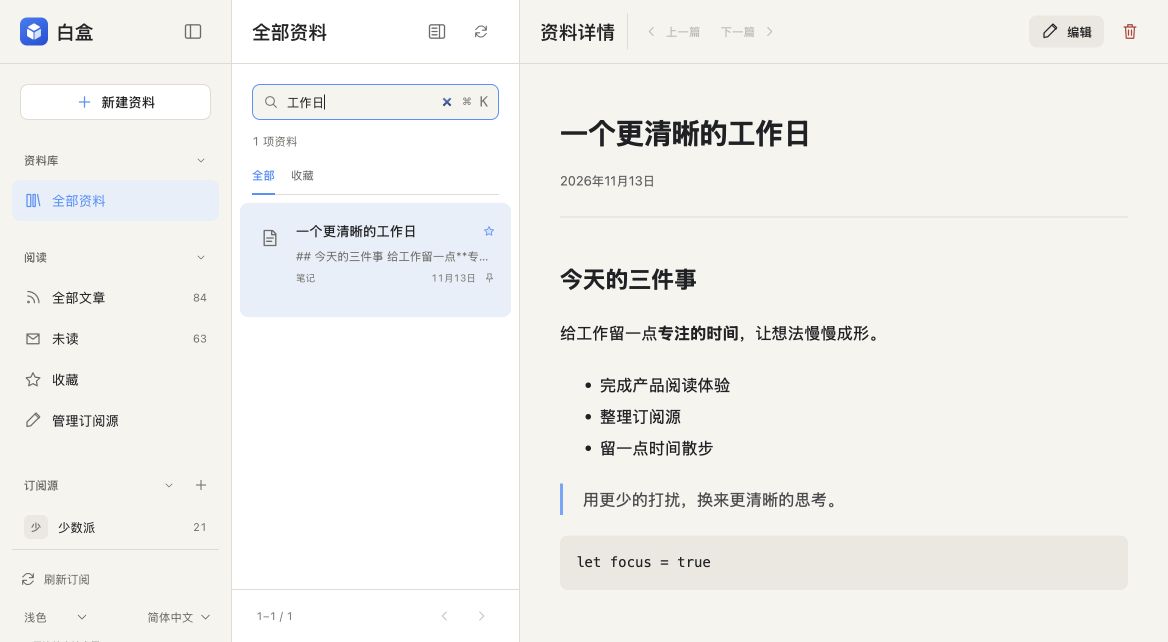
Connect your computer and phone to a network where they can reach each other, enable the local server, and enter the address shown in the app into your browser. Use the current address and port shown by the app and keep the service available while using it. The page is served locally by your phone.
iCloud provides another way to continue across Apple devices using the same account. Subscription feed article data and library items do not have identical sync coverage, so do not assume every subscription article on one device will automatically appear on another.
Continue reading: Reader and article albums · AI reading assistant