
AI reading assistant: keep asking questions about an article
Finishing an article is often where the interesting questions begin. What assumptions support its conclusion? What does a term mean? Does the original actually support a claim?
Fluxion's AI reading assistant works with the current article, so you can keep asking without copying text between apps. This guide covers the 1.16 preview. You need to configure your own model service; availability depends on your installed version.
Connect your model service
Open More → Large Models and add a configuration:
- Choose a service: select a template or add a custom endpoint.
- Enter credentials: provide the API key and other details required by the service.
- Choose and test a model: select one returned by the service or enter its name manually, then save after a successful text test.
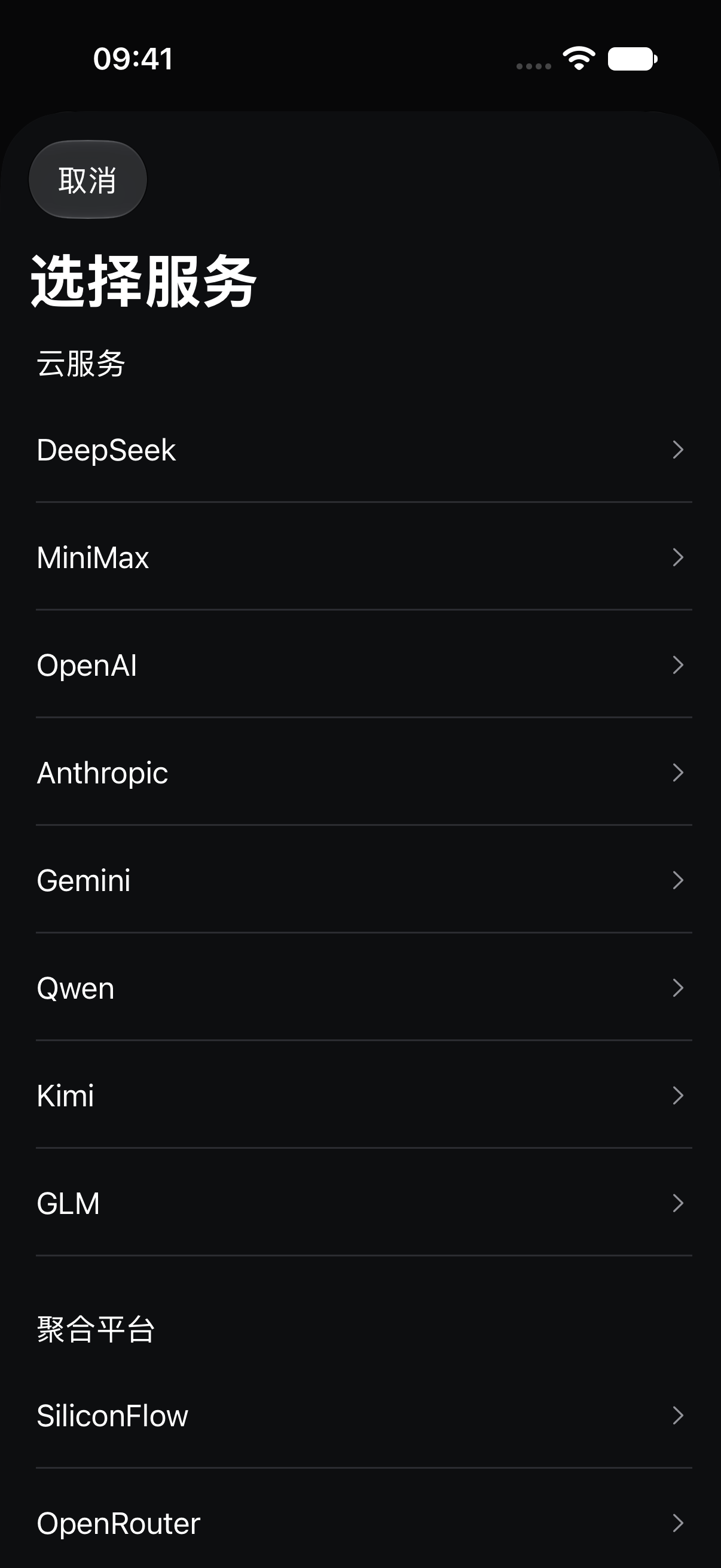
You can keep multiple profiles and choose a default—for example, one cloud provider and one local service. Ollama and LM Studio templates allow an empty API key. When connecting from an iPhone or iPad to a service on your computer, use a LAN address reachable from the device; localhost refers to the device itself.
If the provider cannot return a model list, enter a model name manually and test it. A successful text test does not automatically verify tool calling; additional capabilities can be tested separately in the full editor.
Start with the article you are reading
Open an article and choose Article Actions → AI Assistant. Shortcuts can prefill requests for a summary, key points, explanations of terms, or an evidence check. They do not send anything automatically: edit the prompt and send it when ready.
Try a question with a specific purpose:
I want to decide whether to read this closely. What are its main conclusions, what evidence supports them, and what questions does it leave unanswered?
Then follow up:
What assumptions does the second conclusion depend on? Point me to the relevant passages.
Answers appear as they are generated, and you can stop generation. If the service returns an error, sent questions remain visible so you can adjust and continue.
Use citations to check the source
Citations in an answer can open the corresponding article; when a passage can be located, the reader attempts to take you to it. Use this to compare the model's interpretation with the author's actual words.
Long articles, excerpts, and incomplete text may produce answers based on only part of the original. If the reader has only a summary, try Extract Full Text in Article Actions first. Extraction depends on the original site's content and availability. Read the cited material yourself to decide whether it supports the answer.
Add context from your library or the web
After tool capability has been verified for your model, the conversation can search accessible saved material and subscription articles and read relevant results. For example:
What else in my library discusses this issue? Compare the claims and cite the sources.
Library search respects access protection on items and their folders. It is not a continuous background scan of your whole library.
You can also enable DeepSeek web search in the appropriate configuration. It requires a compatible service and correct setup, and preserves returned web sources with the answer. Web search is separate from article citations and is not available automatically with every provider.
Save an answer independently
Use the save action below an answer to keep it as a separate note with its text and source citations. The original article remains intact. For example, save an explanation and open questions from a technical article, add your own thoughts later, and file the note with the project.
With a cloud model, your question and the article excerpts needed for the answer go to your configured provider. Web searches also send the query to the search service. Manage your own API key and service costs, and check the selected configuration before sending material.
Continue reading: Organize your library · Reader guide