
A month of updates to reading and organizing in Fluxion
Read an article, follow a question, and save what matters to your library. Over the past month, we have been refining each step of that journey.
This recap covers development from October 14 to November 14, 2026, including features in the 1.16 preview. Availability depends on the version installed on your device.
Find something to read, then settle in
The feed now adapts its presentation to the content. Text-heavy items stay compact, summaries offer more context, and image-led stories give pictures more room. Automatic layouts consider the article and its images; you can also choose a presentation yourself.
Image analysis happens on your device. We have reduced unexpected row-height changes during background analysis, fixed missing RSS covers, and improved image loading and retries.
Inside the reader, recent improvements include:
- Reading settings in one place: adjust the theme, size, font, line spacing, and margins.
- A table of contents: jump between recognizable headings in longer articles.
- Article albums: browse an article's images together and save the album.
- A clearer action menu: find the source feed, open the original, extract full text, save, or share.
Font management also lets you choose separate fonts for the interface and article text.
Find your saved material again
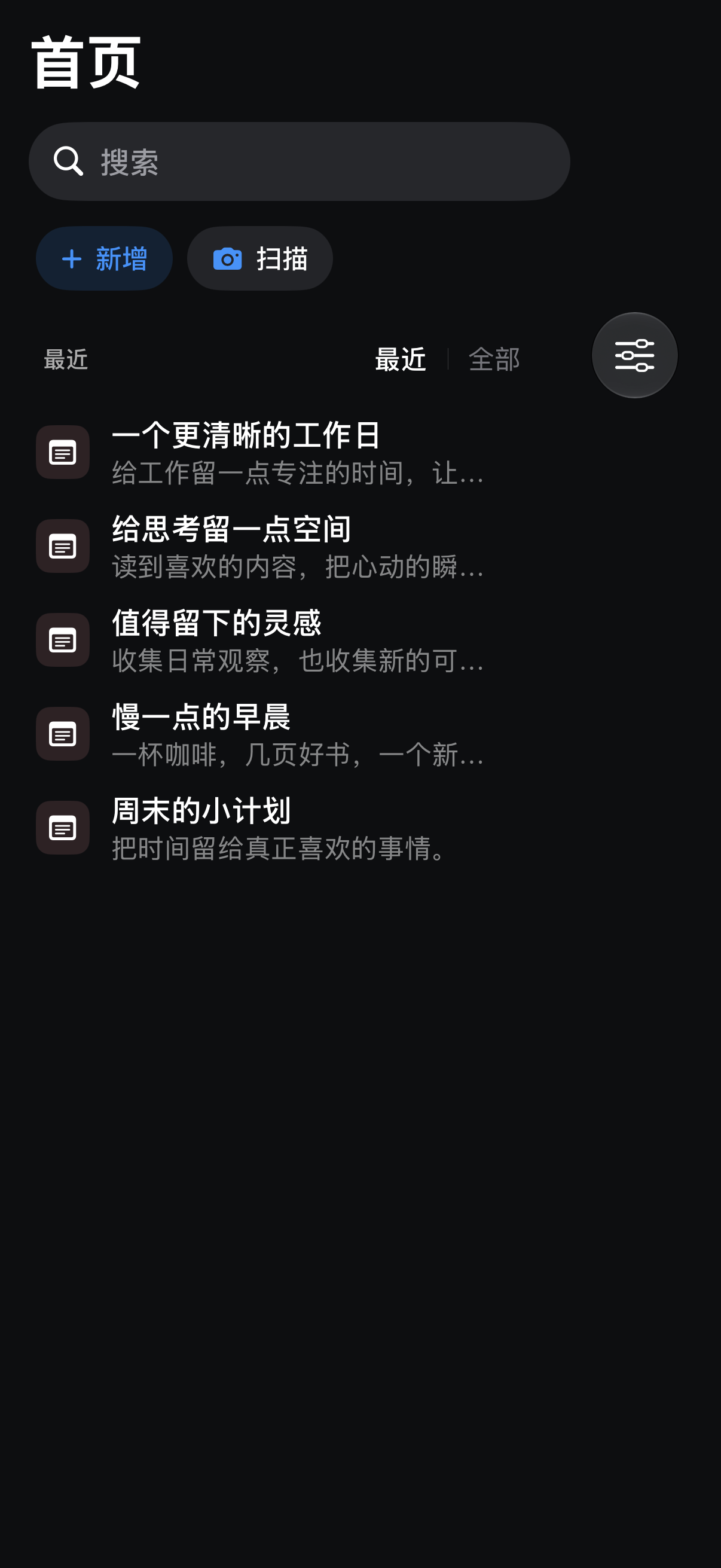
Home now puts recent material close at hand, while folders provide a place for longer-term organization. Saved items can be sorted by update time or name, or grouped by type.
The 1.16 preview adds a Recent / All switch on Home. Recent shows items updated in the past seven days; All includes older items. Search and explicit type filters look across the library regardless of that window.
Saved material can retain connections to its sources, and citations in AI answers can take you back to the relevant material.
Previewing 1.16: keep asking questions with the original at hand
Open Article Actions → AI Assistant to ask about the article you are reading. Shortcuts can prefill prompts to summarize, list key points, explain terms, or check evidence. Edit the prompt before sending it.
Answers support Markdown and source citations. Open a citation to check the original, or save a useful answer separately without overwriting the article.
The configuration library holds multiple model profiles and a shared default. Setup takes you through the service, credentials, and model selection and testing. Templates cover cloud services, gateways, and local options such as Ollama and LM Studio.
With verified tool support, a model can also look for related library material. DeepSeek web search can be enabled in the relevant configuration. These capabilities have their own requirements; ordinary article questions do not require both.
You must configure your own model service. With a cloud service, your question and the original excerpts needed for the answer are sent to that provider; its pricing and capabilities apply.
Explore the AI reading guide →
Quieter improvements
We also worked on startup preparation, Home refreshes, related-article processing, and image reliability. Recent changes move more preparation out of the startup path and streamline related-article processing. Traditional Chinese and other localized text have also been refined.
Try adjusting the reader's font and spacing, or open the AI assistant the next time an article leaves you with a question. We will keep improving the connections between what you read, think about, and save.